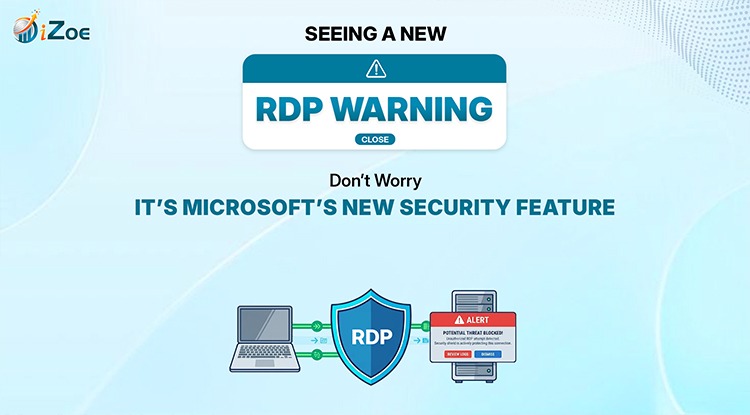
Are You Seeing This Popup While Logging Into Your Server?
If you use Remote Desktop (RDP) to access your server or cloud environment, you may have started seeing a new security popup before connecting.
Many users think:
- “Is this malware?”
- “Has something changed in my server?”
- “Is there a security issue?”
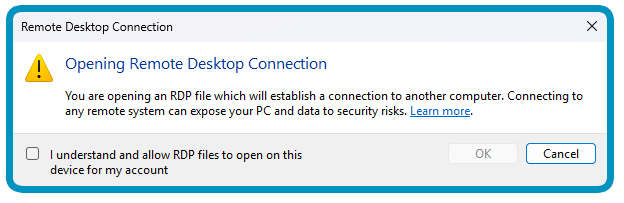
Don’t worry, this is not an issue.
This is a new Microsoft security feature introduced to make Remote Desktop connections safer.
This popup helps you understand what access you’re approving from your local machine to the remote server, reducing the risk of unintentionally sharing more than you need.
Before We Dive In – What Is RDP?
Remote Desktop Protocol (RDP) is Microsoft’s technology that lets you connect to another computer or server remotely.
Using Remote Desktop Connection, you can:
- Access your work server
- Connect to cloud desktops
- Use applications remotely
- Work on a remote machine as if you were sitting in front of it
What Are the Risks With RDP Files?
An RDP file can contain settings that request access to your local resources such as:
- Files and drives
- Clipboard
- Printers
- USB devices
- Camera and microphone
If users approve everything without reviewing it, this can create oversharing risks.
That’s exactly what Microsoft’s new feature is helping prevent.
How You Can Stay Safe
Microsoft’s guidance is simple:
- Open only trusted RDP files
- Verify the remote address
- Review permissions before connecting
- Enable only the access you need
- Leave unnecessary options unchecked
Less access = Lower risk
So What Is This New Popup You’re Seeing?
This popup is Microsoft’s new RDP connection security warning.
It appears before connecting and shows:
- The remote server you’re connecting to
- Whether the publisher is verified
- What local resources the connection wants access to
Let’s be clear:
- This is not an issue
Nothing is broken.
- It’s a Microsoft feature
It was introduced intentionally as a security improvement.
- It benefits users
It helps users know what access they are approving from their device to the RDP server or cloud session.
That means:
- More transparency
- Better control
- Reduced oversharing risk
Understanding the Access Options in the Popup
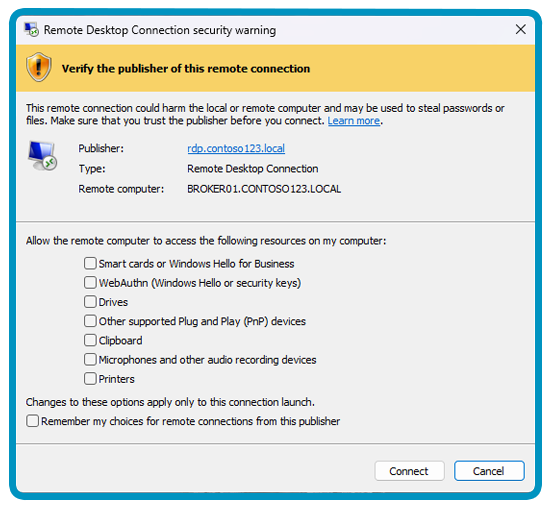
These checkboxes are called redirections; they control what your local device shares with the remote system.
Clipboard
What it means: Copy/paste between your PC and remote session.
Printers
What it means: Use your local printer from the remote server.
Drives
What it means: Shares your local files and drives.
Smart Cards / Windows Hello
What it means: Shares authentication credentials.
Security Keys / WebAuthn
What it means: Allows remote use of security keys.
Microphone
What it means: Shares audio input.
Camera
What it means: Shares webcam access.
Location
What it means: Shares device location.
USB / Plug and Play Devices
What it means: Shares connected devices.
Ports / POS / RemoteFX USB
What it means: Shares hardware and specialized devices.
Recommended Starting Point
As an initial best practice, we suggest enabling only:
- Clipboard
- Printers
Other options can be enabled based on client requirements.
Conclusion
So if you’re seeing this popup -don’t worry. It’s expected.
Many clients using iZoe Cloud Access are seeing this and asking the same questions.
This is not malware or a system issue – it’s Microsoft adding an extra security layer to help you make informed access decisions.
At iZoe, we remain committed to helping clients use remote access securely and smoothly. As an initial recommendation, we suggest starting with Clipboard and Printers, while additional options can be configured based on business needs.
Stay informed. Stay safe
FAQs
What is this new popup in Microsoft RDP?
This is a new Microsoft Remote Desktop (RDP) security popup introduced in the latest update. It appears when you open an RDP file in Remote Desktop Connection and shows what access (like clipboard, drives, printers) the remote server is requesting from your local device.
2) Why am I seeing this Remote Desktop window and what does it mean?
You are seeing this RDP security warning window because Microsoft has updated its remote desktop connection software to improve security. It means the system is asking you to review and approve what local resources you want to share during your remote desktop session.
3) Will this Microsoft RDP popup or warning be removed in future updates?
No, this is not an error -it is a permanent Microsoft RDP security feature, so users should expect to continue seeing it with RDP file connections.
4) 4. How does iZoe help with Microsoft Remote Desktop access and this pop-up?
iZoe can help review your remote access setup, guide safe permission choices, and recommend the right redirection settings for your use case.
5) What does “Unknown Publisher” mean in Remote Desktop (RDP)?
According to Microsoft, unsigned RDP files should be treated carefully and verified before use.
6. Does this affect manual Remote Desktop connections too?
No. Microsoft notes this primarily affects connections started by opening RDP files, not manual connections started directly in Remote Desktop.

